
Coupon Management
The Coupon Management section lets you create, organize, and track coupon codes using coupon pools. Coupon pools help you manage large sets of unique or reusable coupons and monitor how they are assigned and used.

What is a Coupon Pool?
A coupon pool is a collection of coupon codes grouped together for a specific purpose (e.g. welcome discount, abandoned cart, VIP users).
Using pools allows you to:
- Organize coupons by campaign or use case
- Assign coupons automatically or manually
- Track which coupons are used or still available
Coupon Management Dashboard
When you open Coupon Management, you’ll see an overview screen with all your existing coupon pools.

Dashboard Elements
- Coupon Pools section – Displays all created coupon pools
- Create Pool button – Used to create a new coupon pool
- Empty state message – Shown when no coupon pools exist yet
If no pools are available, you’ll see a message:
No coupon pools yet
Along with a call-to-action button to create your first pool.
Creating Your First Coupon Pool
To create a new coupon pool:
Click Create Pool (available in the top-right corner or in the empty state section).

Create Pool Button A modal dialog will open with the following prompt:
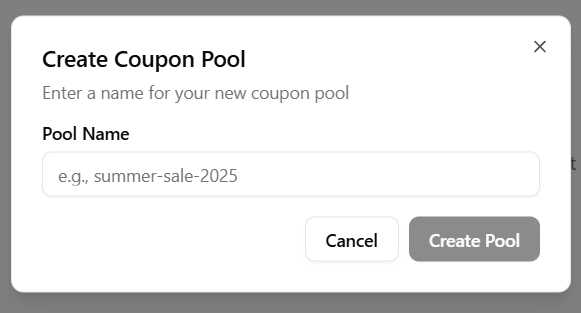
Create Coupon Pool Enter a name for your new coupon pool
Field:
Pool Name – Provide a clear, descriptive name to help identify the purpose of the coupon pool (e.g. campaign or audience).
Actions:
- Cancel – Closes the dialog without saving any changes.
- Create Pool – Creates the coupon pool and saves it to the system.
- Click Create Pool to confirm.
After creation, the new coupon pool will appear in the Coupon Pools list, where it can be managed and configured further.
Coupon Pool Details View
When you open a coupon pool, you are taken to its management screen. This view allows you to control coupon availability, monitor usage, and configure alerts.

Header
- Pool Name – Displays the name of the coupon pool. You can edit the name using the edit icon next to it.

- Import Coupons – Allows you to bulk import coupon codes into the pool.

Coupon Availability Alerts
- Alert when coupons drop below – Enables automatic alerts when the number of remaining coupons reaches a defined threshold.

- Set threshold – Define the minimum number of coupons before an alert is triggered.
Alerts are triggered automatically if the pool is projected to run out within 7 days (based on usage rate) or when no coupons remain.

Tabs

- Active Coupons – Displays all unassigned coupons currently available for distribution.

- Assigned History – Shows coupons that have already been assigned or used, along with their assignment history.

Active Coupons Section
This section is used to add and manage individual coupon codes.

Available fields:
- Code – The coupon code (required).
- Message – Optional message associated with the coupon (e.g. shown to the user).
- Pool Expiration – The expiration date for the coupon within the pool.
- User Expiration – Defines how long the coupon remains valid for the user after it is assigned.
Actions:
- Add (+) – Adds the coupon to the pool.
- Search coupons – Quickly find existing coupons within the pool.
All coupons listed here are unassigned and ready to be distributed.
Assigned History
Coupons that have been distributed

Available fields:
- Code – The coupon code.
- Email – The email address the coupon was assigned to.
- Source – Where the coupon assignment originated.
- Assigned At – The date and time the coupon was assigned.
Actions:
- Search assigned coupons – Find assigned coupons by email or code.
- Refresh – Reload the list of assigned coupons.
- Export CSV – Download assigned coupon data.
Description:
All coupons listed here have already been assigned and are no longer available for distribution.
Managing Coupon Pools
Click on any coupon pool to:
- View available and assigned coupons
- Add or import new coupon codes
- Track coupon usage and assignments
- Manage pool settings
Each pool acts as a central place to control how coupons are distributed and monitored.
Best Practices
- Create separate pools for different campaigns
- Use clear, descriptive pool names
- Monitor coupon usage regularly to avoid running out of codes
Summary
The Coupon Management feature helps you efficiently organize and control coupon distribution through coupon pools. Start by creating a pool, then manage and track your coupons from one centralized place.
If you don’t have any pools yet, simply click Create Pool to get started.